
What AutoCode does
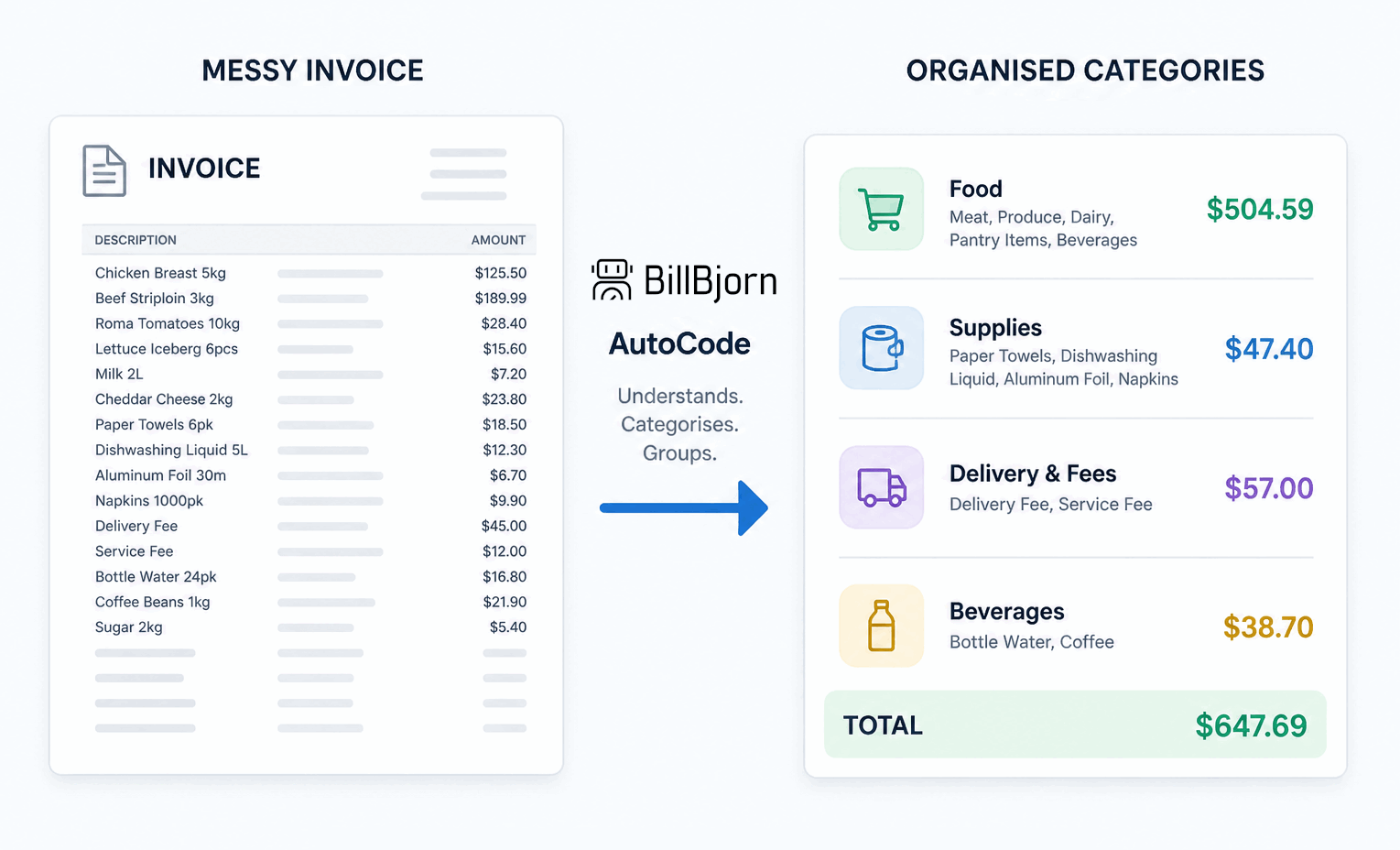
AutoCode automatically reads invoice line items, assigns each item a category, and groups similar items together into clean, coded totals.
Instead of manually splitting invoice lines, everything is prepared for you so you only need to review and approve.
Accessing AutoCode Configuration
To configure AutoCode:
1. Create or edit a rule
2. Select 'AutoCode Lines'
3. Click 'Configure AutoCode Lines'
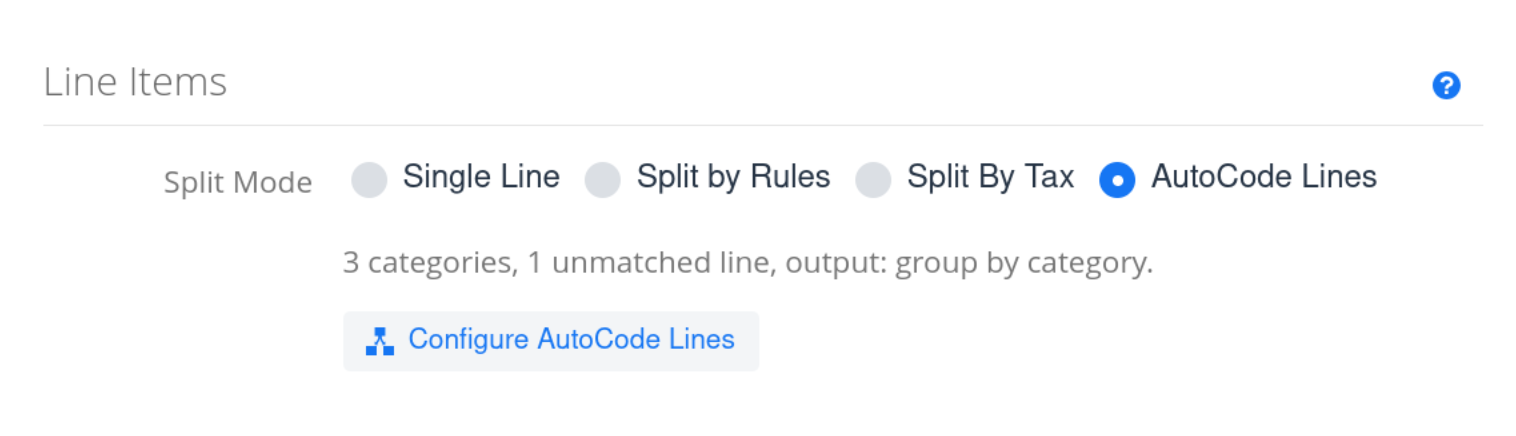
You’ll see either three or four main sections, depending on your country settings:
- Step 1: Define Categories
- Step 2: Unmatched Items
- Step 3: Output Format
- Step 4: Add a separate tax Line (USA only)
Step 1 – Define Categories
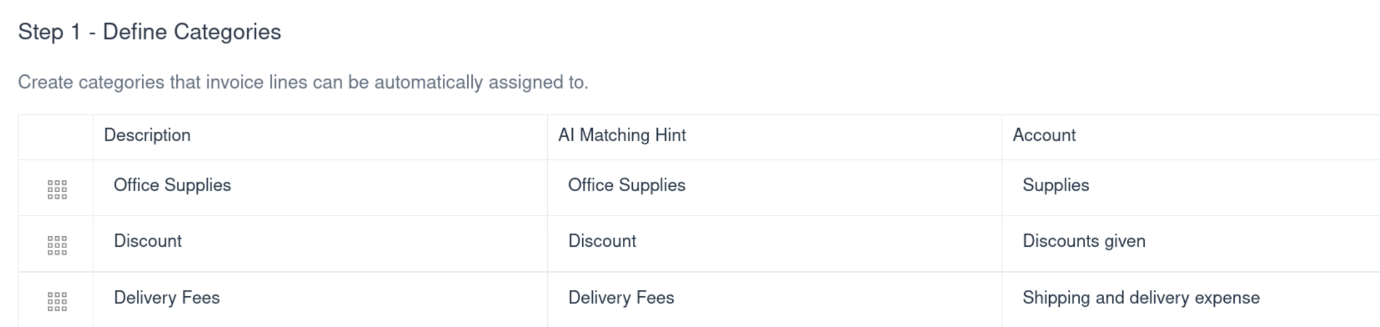
This section defines the categories AutoCode will use when splitting invoice lines.
Each row represents a category and includes:
- Description: The label that will appear on the final invoice line
- AI Matching Hint: Keywords or phrases that help AutoCode recognise this category
- Account: The accounting account to assign
- Depending on your accounting software and its configuration, complete the remaining fields as needed.
How to configure:
1. Click 'Add Category'
2. Enter a clear description (e.g. Office Supplies, Delivery Fees)
3. Add matching hints based on how items appear on invoices
4. Select the correct account and tax settings
Tips:
- Keep matching hints simple and relevant
- Include common variations (e.g. shipping, courier, delivery)
- Avoid overly broad terms that may cause misclassification
Step 2 – Unmatched Items
This section controls what happens when AutoCode cannot match part of an invoice to any defined category.
Any unmatched items will be grouped into this category.
How to configure:
1. Assign a default account for unmatched items
2. Optionally define tax rate and other fields

Best practice:
- Use a general account (e.g. Miscellaneous Expenses)
- Regularly review unmatched items and update your categories to improve accuracy
Step 3 – Output Format
This section determines how the final invoice lines are presented.
Options:
- Group by category: Combines items into one line per category (recommended)
- Keep individual items: Keeps each detected item as a separate line
How to configure:
1. Select your preferred output format

Best practice:
- Use 'Group by category' for cleaner, simpler invoices
- Use 'Keep individual items' if detailed breakdown is required
Step 4 – Add sales tax as a separate line (US-style invoices)
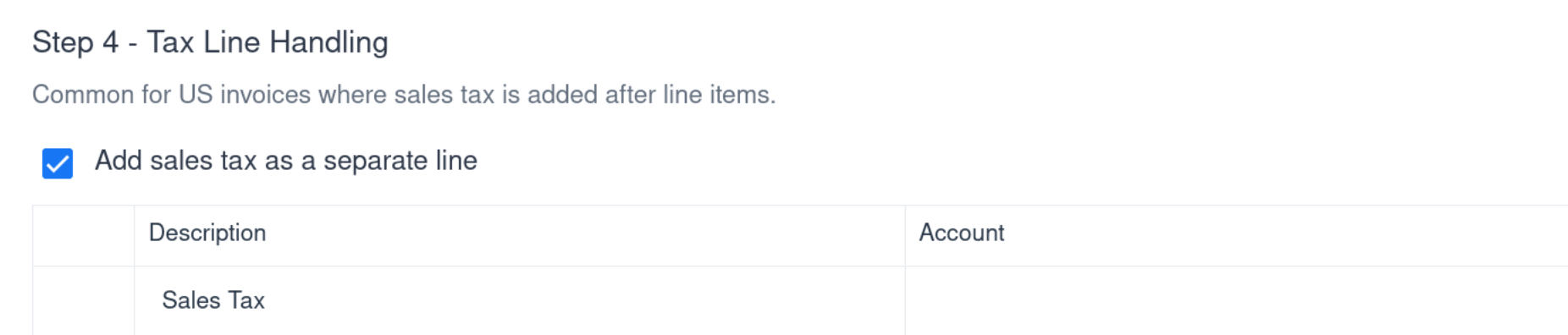
This section controls how sales tax is represented on the final invoice when AutoCode processes US-style invoices.
In many US invoices, sales tax is not included within individual line items but is added as a separate total at the bottom. Enabling this option ensures the tax is captured and exported correctly.
How to configure:
- Enable Add sales tax as a separate line
- Set the Description (default is typically “Sales Tax”)
- Select the appropriate Account for sales tax
What this does:
- Extracts the total sales tax from the invoice
- Adds it as a separate line in the final output
- Keeps item lines tax-exclusive for cleaner categorisation
Best practice:
- Use a dedicated tax liability account to keep reporting accurate
- Keep the description consistent (e.g. “Sales Tax”) for easier reconciliation
- Only enable this if your invoices show tax as a separate total, not embedded in line items
If this option is disabled, AutoCode will treat tax as part of the line totals instead of creating a separate entry.
Summary
Once configured, AutoCode will automatically apply these rules to future invoices from the same supplier. This reduces manual work, improves consistency, and allows you to scale invoice processing efficiently.