
The Data Export feature allows you to export invoice data and original documents from BillBjorn into a downloadable ZIP archive. Exports are created based on your current search results, making it easy to export only the documents you need.
Before You Begin
You must perform a search before exporting data.
Data Export is only available to users with the Administrator or Subscriber user role.
Exports include invoice data (CSV) and original document files.
Download links expire after 3 days for security reasons.
Step 1: Search for Documents
To begin, search for the documents you want to export. You can either:
Enter a keyword or search term into the search bar
Use the advanced filters by clicking the Filter button

Using Advanced Search Filters
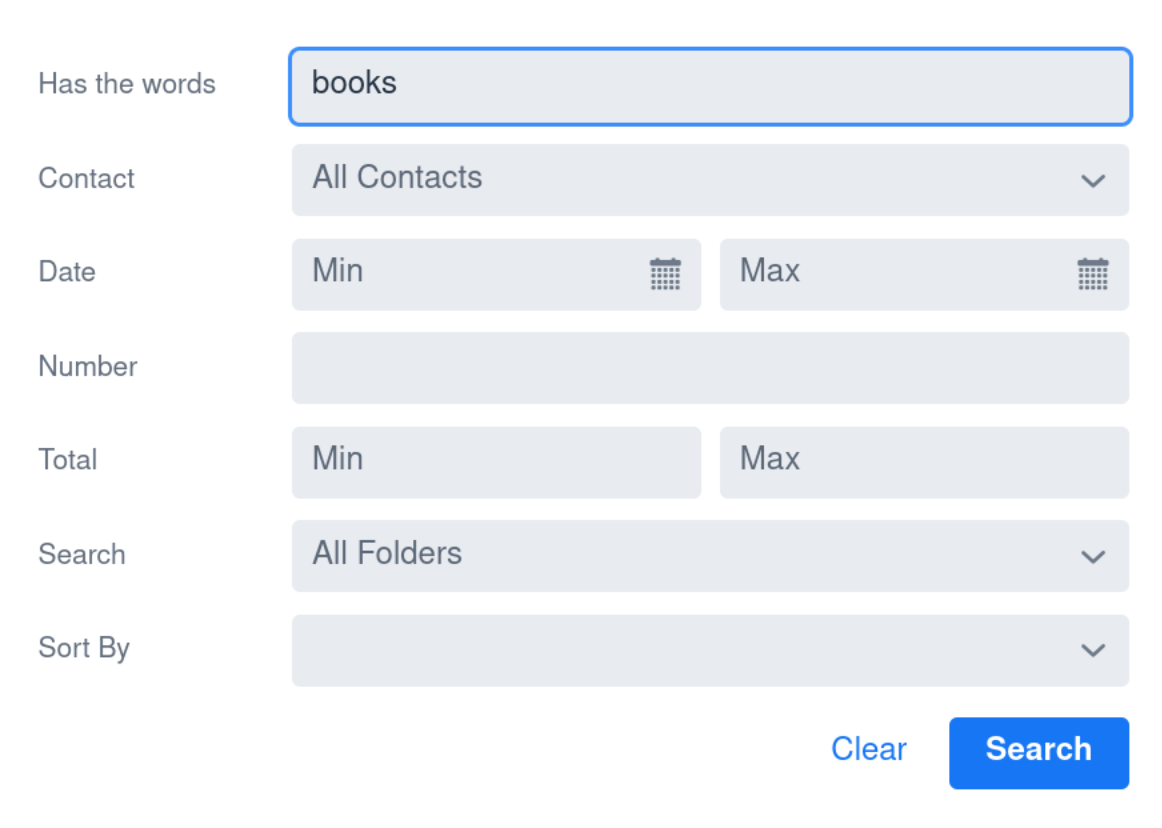
The advanced search screen allows you to narrow down results using multiple criteria, including:
Keyword or phrase
Contact
Date range
Invoice number
Total amount range
Folder/location
Sorting options
Step 2: Run the Search
After entering your search criteria, click the Search button. BillBjorn will display all matching documents.
Once search results are displayed, the Export button will appear next to the Filter button.

Export Limit: Each data export is limited to a maximum of 2,000 documents. If your search returns more than 2,000 results, refine your search and export the data in smaller batches. A common approach is to filter by date range, supplier, or folder to reduce the number of matching documents.
Step 3: Export the Results
Click the Export button to open the Export Results window.
In this screen, you can review how many documents will be included in the export and enter an export name.
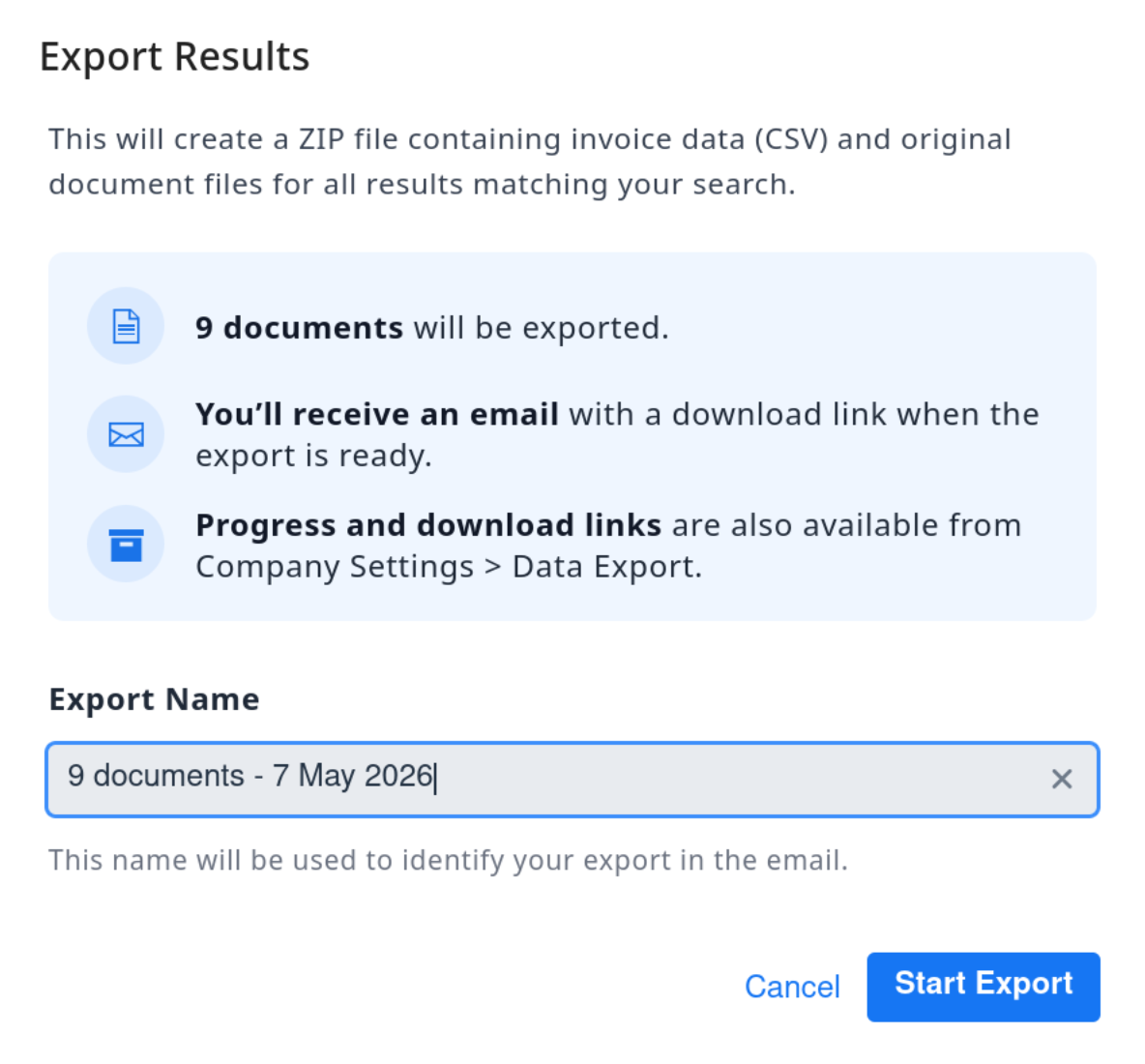
Enter a meaningful export name
Review the number of documents included
Click Start Export to begin the export process
Step 4: Download the Export
When the export is complete, BillBjorn will send an email notification containing a download link to the ZIP file. Only Administrator and Subscriber users can access the Data Export screen.
You can also access completed exports from:
Company Settings > Data Export
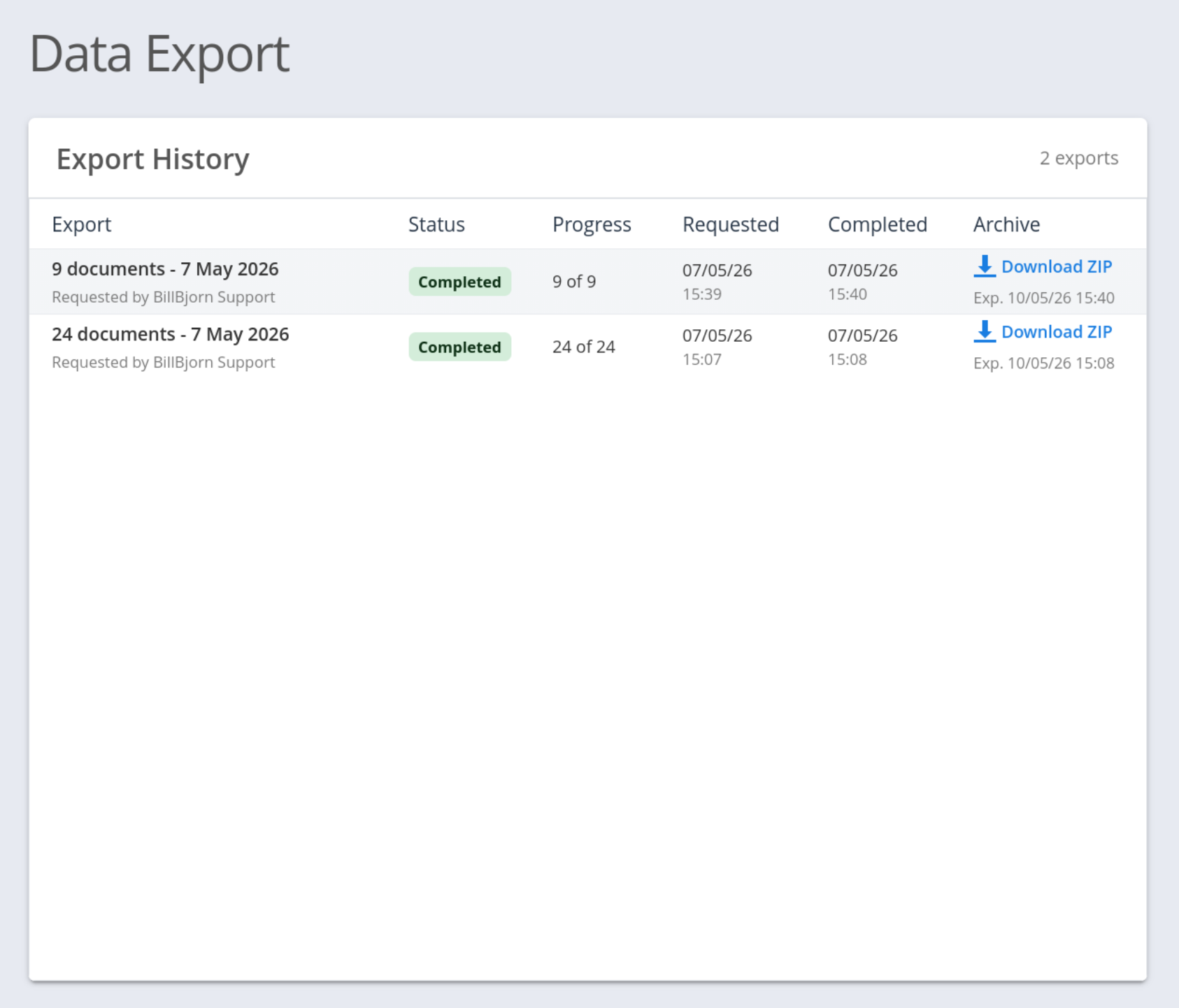
The Data Export screen displays:
Export status
Progress information
Requested and completed timestamps
Download links for completed exports
Important Notes
Download links automatically expire after 3 days for security reasons.
Exports are provided as ZIP files containing both CSV data and original document files.
If an export fails, you can create a new export by repeating the search and export process.
Tips
Use advanced filters to narrow down exports to specific suppliers, dates, or invoice totals.
Give exports descriptive names so they are easier to identify later.
Large exports may take longer to process depending on the number of documents included.