
Scan2Invoice is the desktop version of BillBjorn and uses the same account and company data.
You can sign in to Scan2Invoice using the same email address and password you use for the BillBjorn website. Although the products have different names for historical reasons, they work together as part of the same platform.
Watched Folders (Auto Import) are available in the Scan2Invoice desktop application only because the feature requires access to folders on your computer or synced drives.
When a supported invoice or receipt file is added to a watched folder, Scan2Invoice automatically uploads it to the selected company and sends it through the normal OCR and data extraction workflow.
Typical Use Cases
Watched folders are commonly used for:
- Scanner output folders
- Supplier invoice PDF folders
- Email attachment save folders
- Dropbox or OneDrive synced folders
- Shared bookkeeping inbox workflows
- Downloading invoices manually from supplier portals when suppliers do not send invoices by email
A common workflow is downloading invoices from supplier websites or portals as PDFs, then saving them into a watched folder. Scan2Invoice automatically imports the files and sends them through OCR and data extraction without requiring manual uploads.
Example workflow:
Scanner / Email / Dropbox → Watched Folder → OCR & Extraction → Review → Accounting Software
Setting Up a Watched Folder
1. Install and Sign In to Scan2Invoice
- Install the Scan2Invoice desktop application from www.scan2invoice.com
- Sign in using your BillBjorn account email and password
- Open the company that should receive imported documents
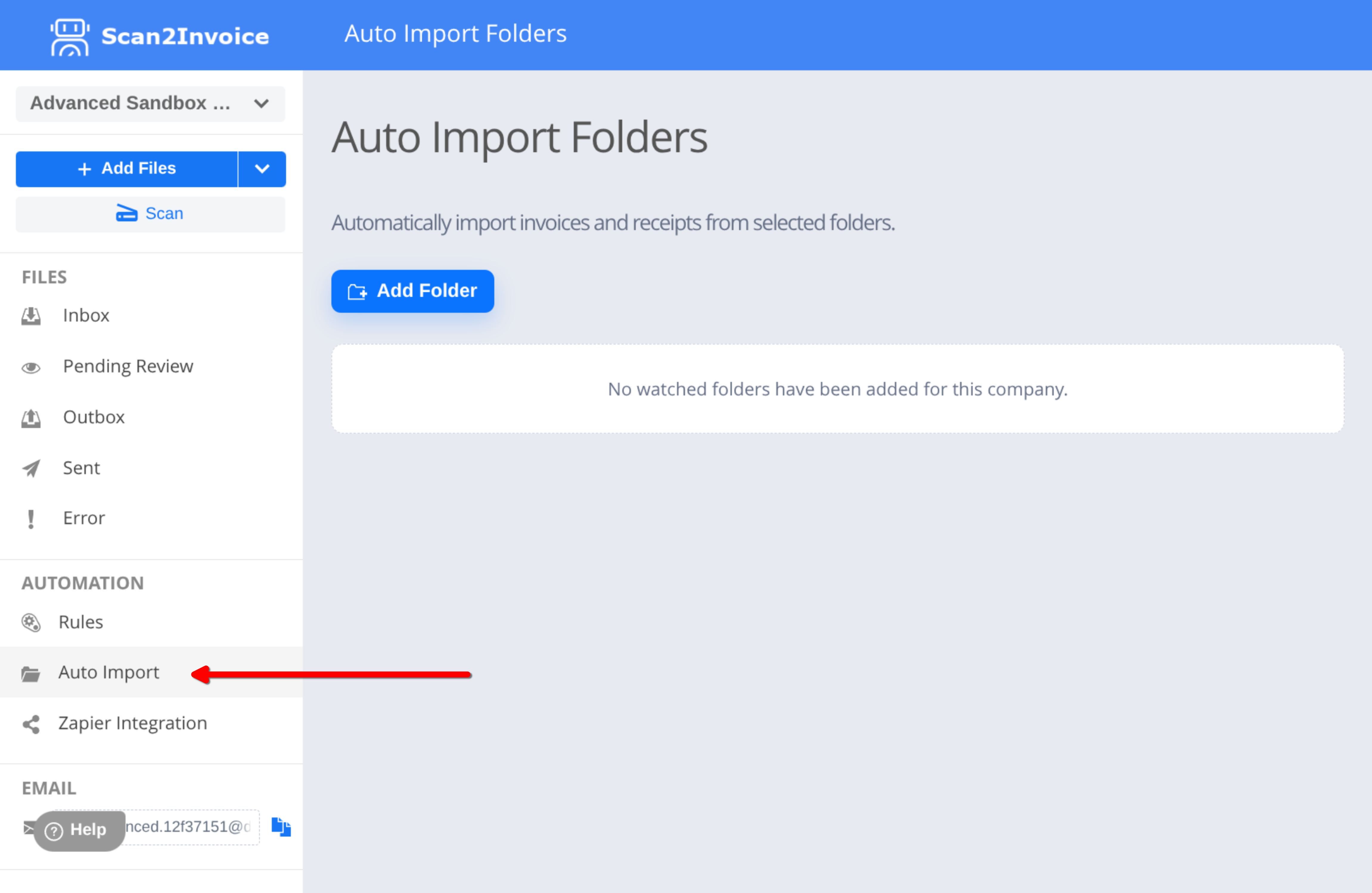
2. Open Auto Import Folders
In Scan2Invoice, open:
Auto Import Folders
This page displays all configured watched folders and their current status.
3. Add a Watched Folder
- Click Add Folder
- Select the folder to monitor
- Choose one of the following options if files already exist:
Watch new files only
Recommended for folders that already contain archived documents.
Import existing files
Imports supported files already inside the folder.
If many existing files are detected, Scan2Invoice may ask you to type IMPORT to confirm.
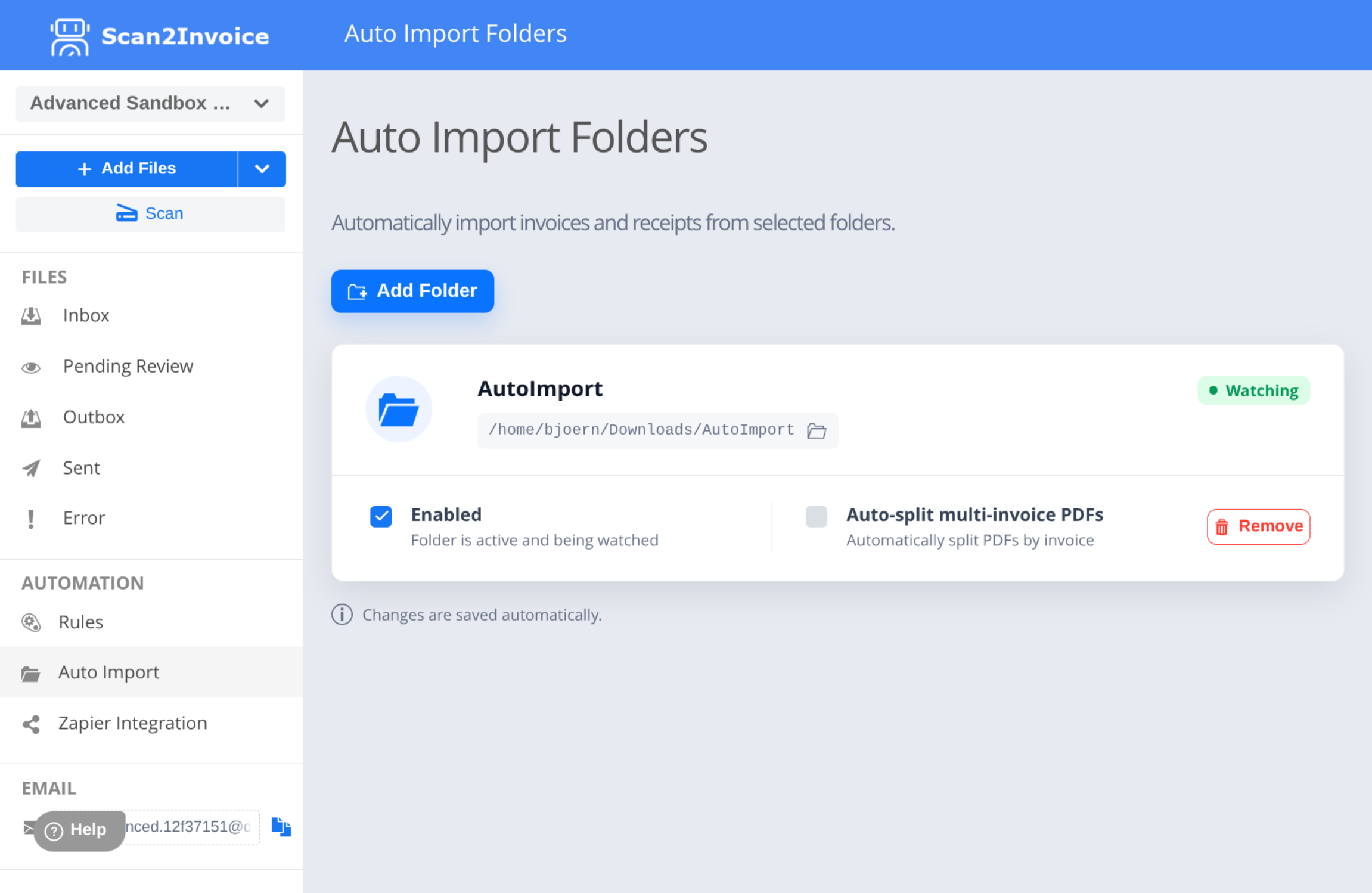
4. Configure the Folder
Enabled
Turn this on to actively monitor the folder.
Auto-split multi-invoice PDFs
Enable this option only if your PDF files may contain multiple invoices in a single document.
For automatic splitting to work correctly, the PDF must contain searchable text. This is usually the case when:
- The PDF was generated electronically from accounting or billing software
- The document was scanned using OCR software and saved as a searchable PDF
Scanned image-only PDFs without searchable text cannot be split automatically because the application relies on the embedded text inside the PDF to detect where each invoice begins and ends.
Important Notes
- Only files directly inside the selected folder are monitored
- Subfolders are ignored
- Scan2Invoice waits until files finish copying before importing them
- Imported files are moved to a
Processedsubfolder automatically
Best Practices
- Use a dedicated import folder per company (if you have multiple companies)
- Avoid watching archive folders
- Do not manually modify the
Processedfolder - Use Watch new files only for existing folders
- Keep Scan2Invoice running while automatic imports are required
- Keep Dropbox or OneDrive running for synced folders
- Use clear file names when possible
Example:
2026-05-18_SupplierName_Invoice1234.pdf
Troubleshooting
Files Are Not Importing
Check the following:
- The watched folder still exists
- The folder is enabled
- The file is fully copied before import
- Scan2Invoice is open and signed in
Synced or Network Folders
If using Dropbox, OneDrive, or a network drive:
- Make sure the folder is fully synced locally
- Allow up to 30 seconds for detection
- Confirm the drive is connected before opening Scan2Invoice
Files Remain Locked or Delayed
Close any application currently using the file, including:
- PDF viewers
- Scanner software
- Email applications
- Sync clients
Password-protected or damaged PDFs may not import.
FAQ
Do watched folders work in the BillBjorn website?
No. Watched folders require the Scan2Invoice desktop application because the feature needs access to folders on your computer.
Is Scan2Invoice separate from BillBjorn?
Scan2Invoice is the desktop version of BillBjorn.
They share the same login, companies, and cloud processing platform. The different names exist for historical reasons.
Are subfolders monitored automatically?
No. Only files directly inside the selected folder are monitored.
Create additional watched folders if needed.
What happens to files after import?
After successful upload, files are moved automatically into the Processed subfolder.
Can I import files already inside a folder?
Yes. When adding a folder, choose:
- Import existing files
or - Watch new files only
For most existing archive folders, Watch new files only is recommended.
Can I watch Dropbox or OneDrive folders?
Yes, as long as the folder is synced locally on the Scan2Invoice computer.
Does Auto Import automatically export to the accounting software?
No. Auto Import uploads documents for OCR and extraction.
Documents still follow the normal review and export workflow before being sent to the connected accounting software.
What should I send support if Auto Import is not working?
Please include:
- Watched folder path
- Example file name
- Folder status shown in Auto Import Folders
- Whether the folder is local, synced, or network-based
- Screenshot of any error or warning message